
You can set or change the PIN on your physical Budgetly card at any time using the desktop platform or the mobile app.
Note: Virtual cards do not require a PIN. If prompted for a PIN when paying with a virtual card, press the enter button on the payment terminal to proceed.
Change your PIN on desktop
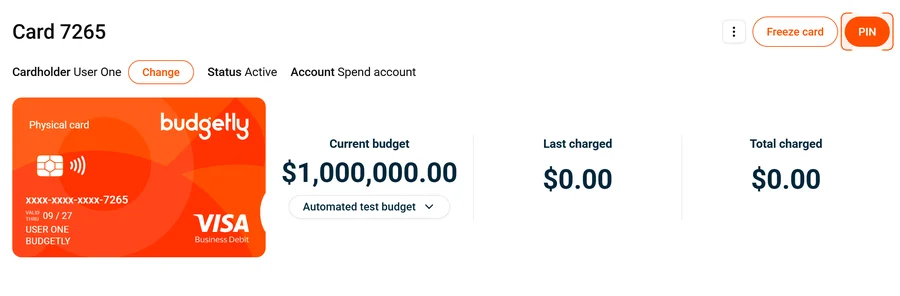
- Click Cards in the left menu.
- Select the card you want to update by clicking its last 4 digits.
- Click the PIN button in the top-right corner.
- Enter your preferred 4-digit PIN and confirm.
Change your PIN on mobile
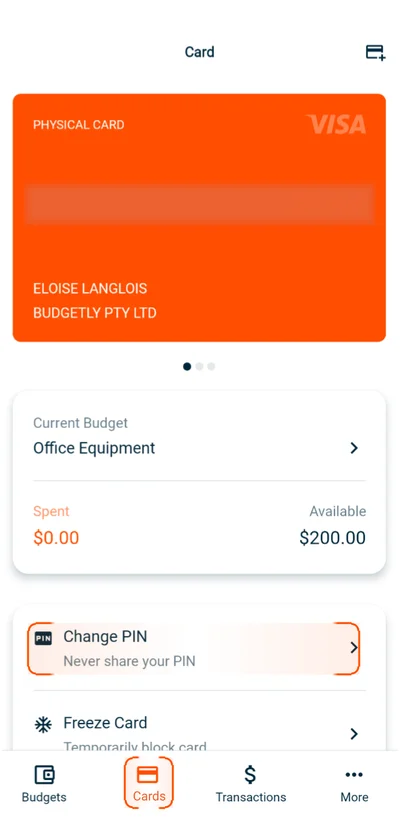
- Open the Budgetly mobile app and tap Cards in the bottom navigation bar.
- Swipe to your physical card if you have more than one card.
- Scroll down and tap Change PIN.
- Enter your preferred 4-digit PIN.
- Confirm the new PIN and tap Change PIN.
Important: If you enter your PIN incorrectly three times, your card will be blocked. To unblock it, simply update your PIN using the steps above — this automatically unblocks the card.
Common questions
Do virtual cards have a PIN?
No. Virtual cards don’t require a PIN. If prompted at a terminal, press the enter button to proceed.
What happens if I enter my PIN wrong three times?
Your card is blocked. Update your PIN using the steps above — this automatically unblocks the card.
Can an admin set a PIN for me?
Yes. Both admins and the cardholder can set or change a card’s PIN. An admin can update the PIN on your behalf from the Cards page on desktop, and you can set or change it yourself using the steps above.