
The Budgetly mobile app lets you upload receipts, view your card details, and track transactions from your phone.
| Screen | What you can do |
|---|---|
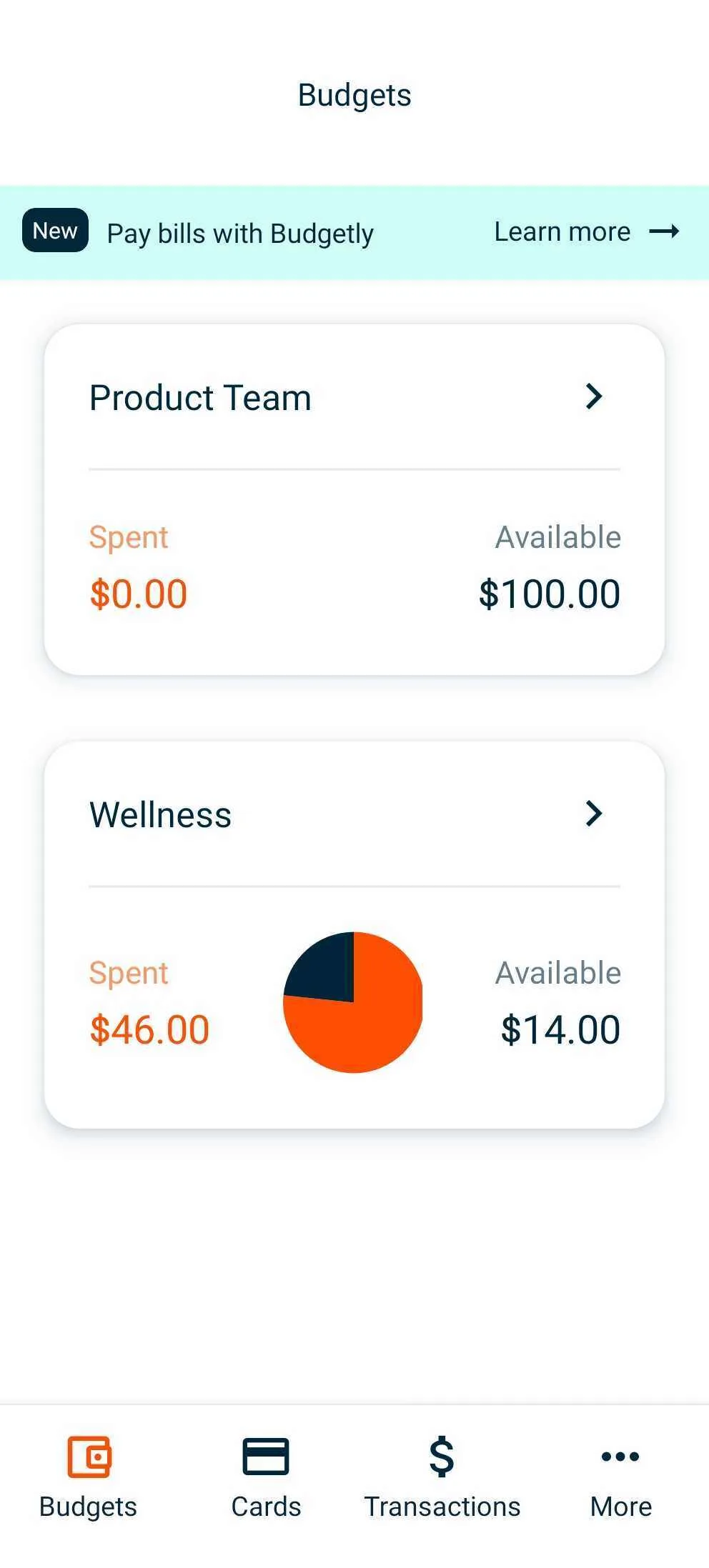
| Budgets | View budgets, request money, see members and cards |
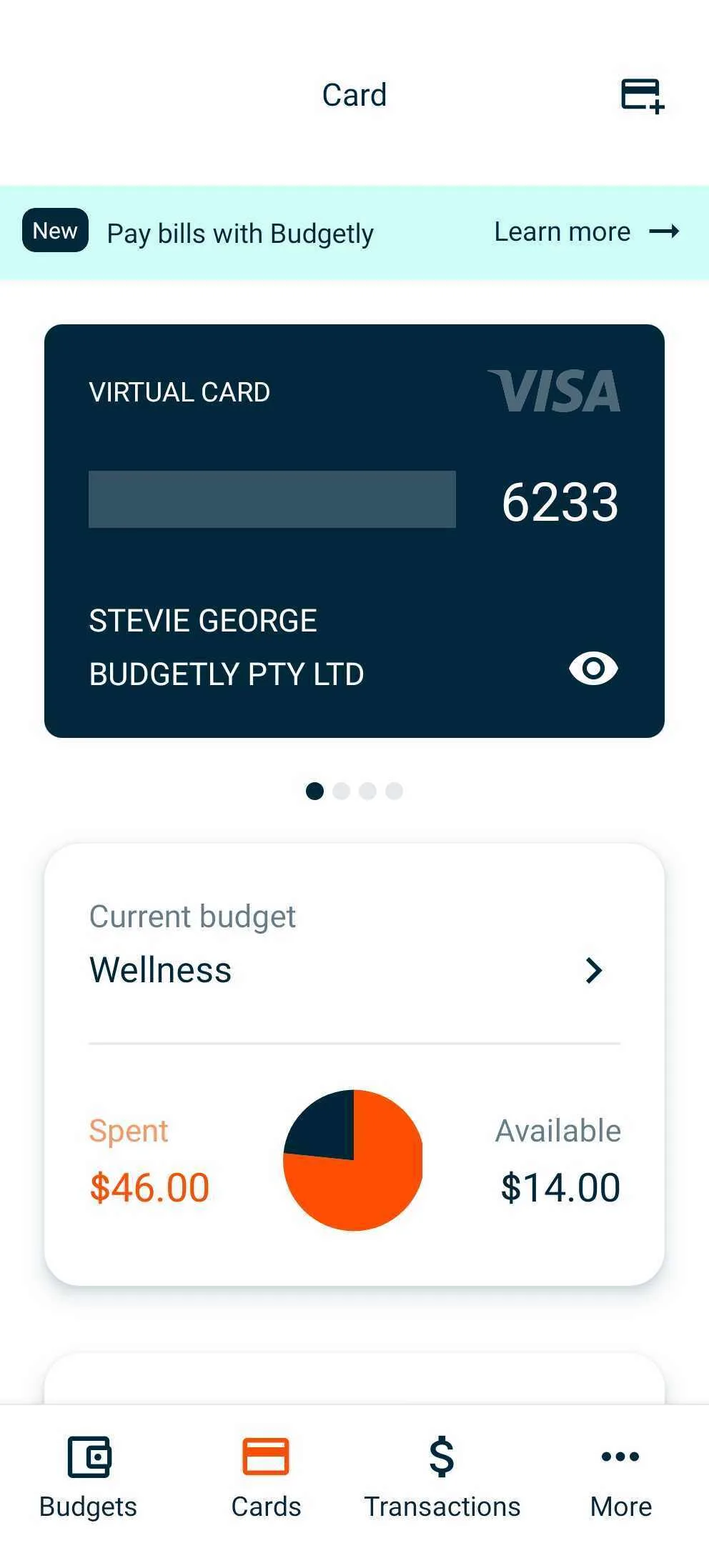
| Cards | View card details, change budget, set PIN, freeze or cancel |
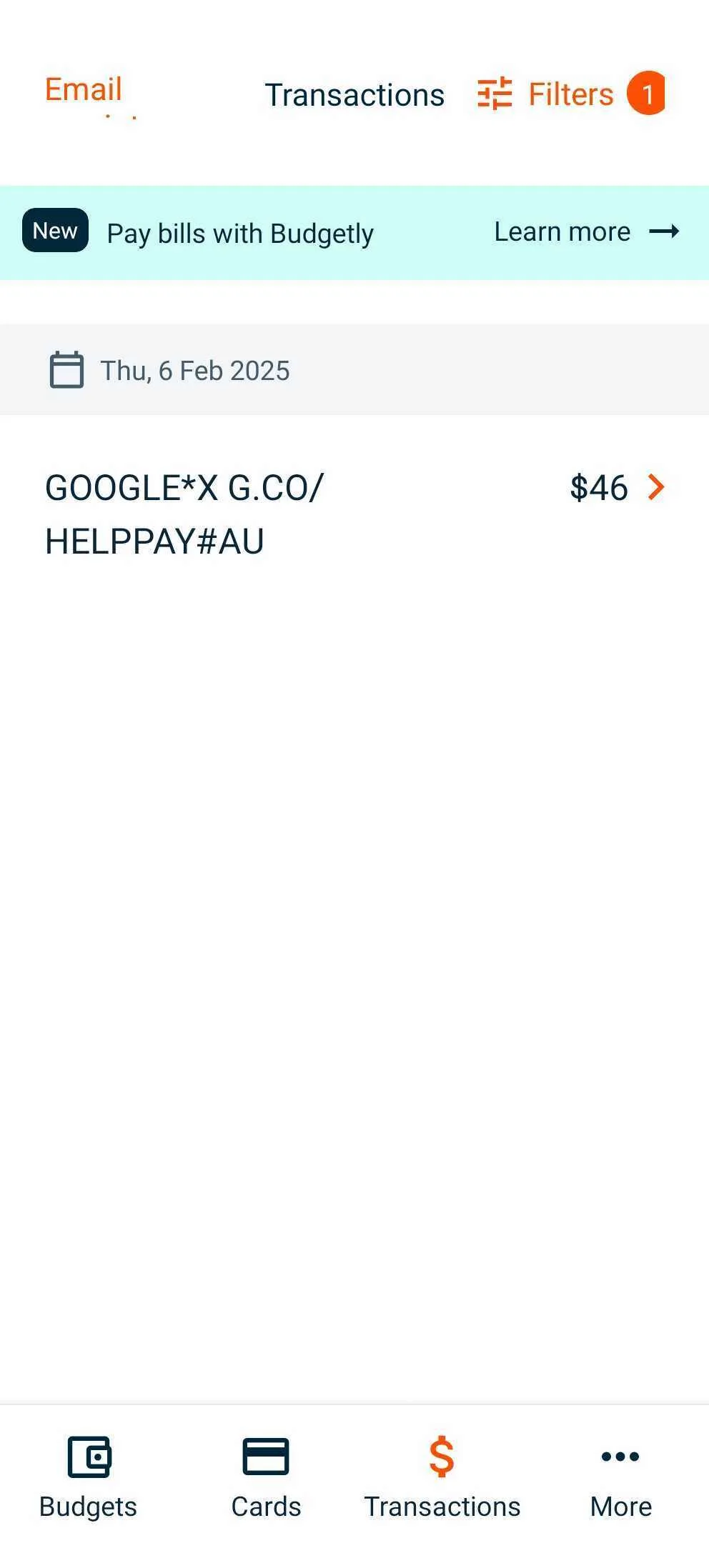
| Transactions | View recent transactions, upload receipts, add GST, categorise |
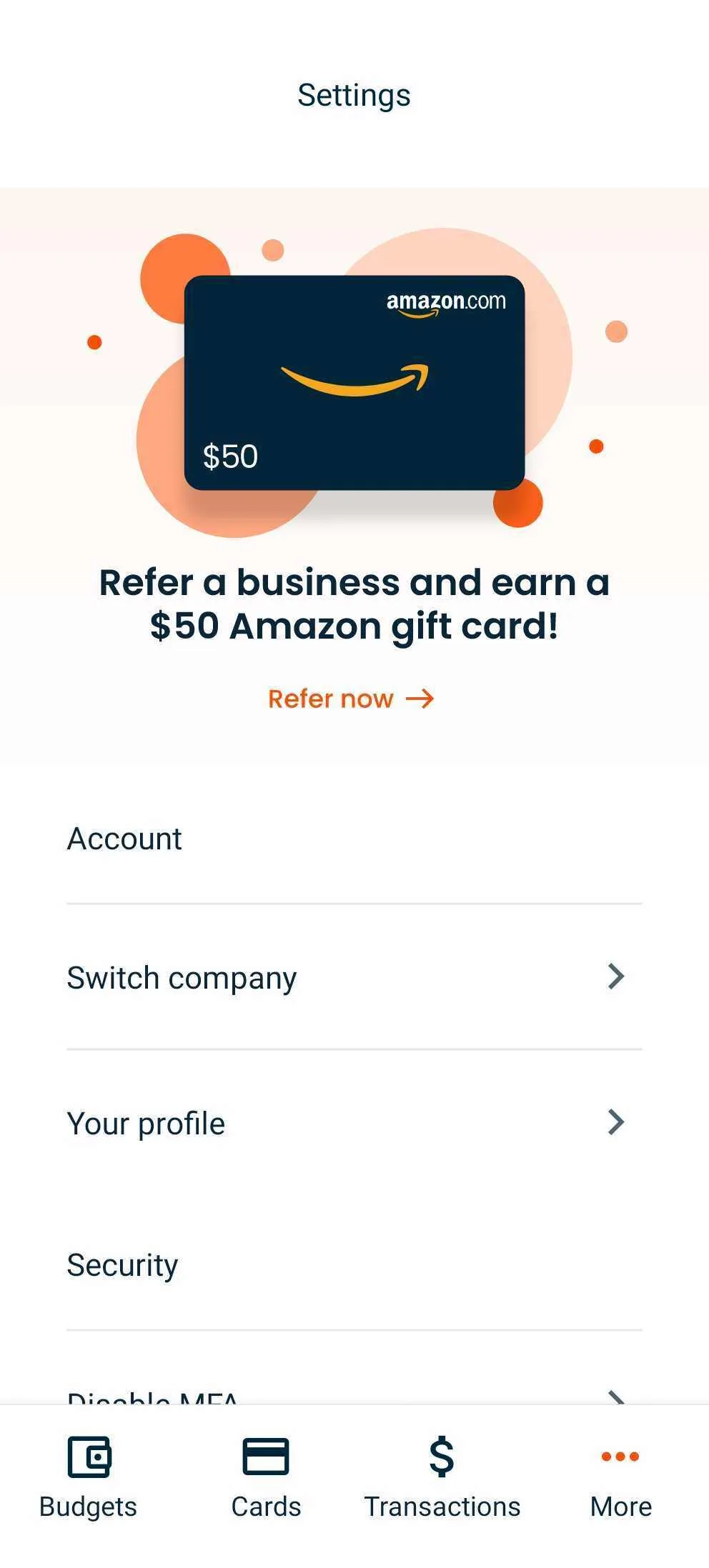
| More | Switch company, edit profile, manage MFA |
Note: The mobile app shows the last 30 days of transactions. To view older transactions, log in at budgetly.io/login.
Download the app
The mobile app is available on Android and iOS.


Log in
- Open the Budgetly app and enter the email address you signed up with or were invited to.
- Type your password.
- Tap Log in.
Tip: The app keeps you logged in for 30 days before requiring reauthentication.
Budgets
View all the budgets you are a member of. Tap a budget name to see more details, including:
- Request money from the budget.
- See the cards currently spending from it.
- View other members and owners.
Cards
View and manage your cards. From this screen you can:
- Swipe between cards if you have more than one.
- See the Current budget a card is spending from.
- Change the budget by tapping the budget name and choosing another.
- Set or update your PIN (physical cards only).
- Freeze or cancel the card.
- Order a new card (if enabled on your account).
Transactions
View your recent transactions. Tap a transaction to:
- Upload a receipt.
- Add GST manually.
- Change the budget if the purchase was assigned to the wrong one.
- Add a category, tags, and notes.
More
Access your account and profile settings. From here you can:
- Switch to another company account.
- View and edit your profile.
- Disable MFA (if MFA is enabled on your profile).
Common questions
Why can't I see my transaction history in the app?
The mobile app displays the last 30 days of transactions. To view older transactions, log in at budgetly.io/login.
Can I upload receipts for past transactions?
Yes. In the Transactions section, tap a transaction to upload a receipt, add GST, change the budget, or add categories, tags, and notes.
Can I tap my card to pay from the mobile app?
Not directly. Add your card to Apple Wallet or Google Wallet and pay using those apps.
What are the minimum system requirements?
Android 5.0 or later, and iOS 13.4 or later.