
When you upload a receipt to a card transaction, AI Bookkeeping checks it for accuracy and extracts the GST amount. Receipt checks and GST extraction are part of AI Bookkeeping and are available on all plans.
What receipt checks do
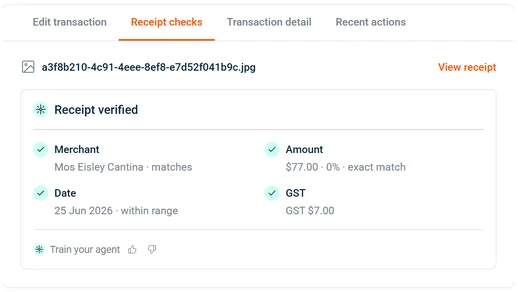
Receipt checks verify uploaded receipts against the transaction data. The check looks at:
- Whether the merchant on the receipt matches the transaction
- The transaction amount
- The date
- GST presence and amount
Important: Receipt checks run on card transactions only. Bills, deposits, and wallet debits are excluded and show no receipt check status.
Receipt check statuses
| Status | Meaning |
|---|---|
| Verified | The receipt passed all checks |
| Flagged | One or more checks failed — an admin or accountant should review |
| (empty cell) | No receipt uploaded, or the transaction type isn’t eligible |
The Receipt check column appears in the transaction list for card transactions.
How GST extraction works
- Upload a receipt to a card transaction (via the web app or by forwarding it to your Budgetly email).
- AI Bookkeeping reads the receipt and extracts the GST amount.
- The extracted GST appears in the GST field on the transaction.
Tip: You can always manually enter or correct the GST amount, even after automatic extraction. Your manual entry takes priority.
Verifying a flagged receipt
When a receipt is flagged, an admin or accountant should review it and either correct the issue or verify it manually.
- Open the flagged transaction from the transaction list.
- Review the receipt against the transaction details.
- Select Verify to mark the receipt as reviewed.
Re-running a receipt check
Receipt checks re-run automatically when a receipt is uploaded or replaced on a card transaction. There’s no manual “re-run” button — upload a new or corrected receipt to trigger a fresh check.