
You can change which budget a card spends from at any time, as long as the card is active.
| Card status | Can change budget? |
|---|---|
| Active | ✓ Yes |
| Frozen | ✗ Unfreeze first |
| Cancelled | ✗ Not possible |
Important: You cannot change the budget on a frozen or cancelled card. Unfreeze the card first if needed.
Change a card’s budget on desktop
- Click Cards in the sidebar.
- Select the card you want to update.
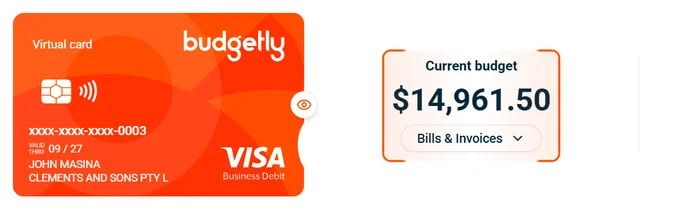
- Find the Current budget section below the card image.
- Click the budget name (or Select budget if none is assigned).
- Choose the new budget from the list.
- Click Save.
Change a card’s budget on mobile
- Open the Budgetly mobile app and tap Cards.
- Swipe to the card you want to update.
- Tap the budget name under Current budget.
- Choose the new budget from the list.
Tip: For more on what you can do in the mobile app, see How to use the mobile app.
Common questions
Does changing the budget affect pending transactions?
No. Pending transactions stay on the original budget. Only new transactions after the change use the new budget.
Can I assign a card to more than one budget?
No. Each card spends from one budget at a time. Change it whenever you need to, but it’s always one budget per card.
Can a regular user change their own card's budget?
It depends on your account settings. By default, only admins can change card budgets. Check with your admin if you don’t see the option.