
When a budget uses individual limits, you can top up a specific user’s available balance without changing their limit. The top-up resets naturally at the next cycle — no need to manually adjust it back.
| Term | What it means |
|---|---|
| Individual limit | The maximum each user can spend per cycle |
| Available balance | How much the user has left to spend this cycle |
| User top-up | A one-off increase to a user’s available balance (doesn’t change the limit) |
Note: User top-ups require Individual limits to be enabled on the budget. See How to create a budget for setup details.
How to top up a user
- Click Budgets in the sidebar.
- Select the budget containing the user.
- Find the user in the members list — you’ll see their individual limit, previous top-ups, amount spent, and current available balance.
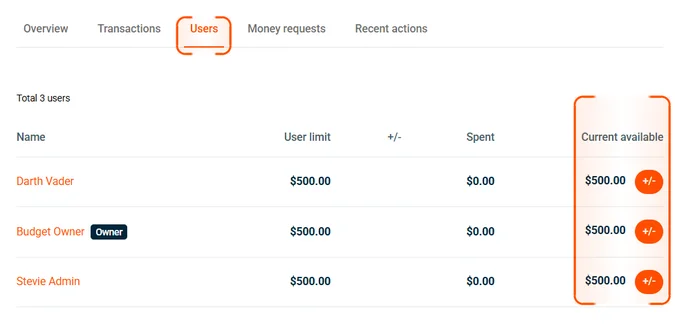
- Click the +/− button next to the user.
- Choose Top-up and enter the amount.
- Add a reason and confirm.
Who can approve user top-ups
| Role | What they can do |
|---|---|
| Admin | Top up any amount, regardless of budget balance |
| Budget owner | Top up only within the budget’s available balance |
Important: If a user requests more than the budget’s available balance, only an admin can approve it. Budget owners should contact their admin to top up the overall budget first.
Common questions
Does a user top-up change their individual limit?
No. It increases their available balance for the current cycle only. The limit stays the same and resets as normal next cycle.
Can a user request a top-up themselves?
Yes. Users can submit a money request from the Budgets screen in the app. The admin or budget owner is notified. See How to request money.
What if the budget doesn't have enough balance for the top-up?
A budget owner can only approve within the budget’s available balance. An admin can top up the overall budget first, then approve the user’s request.