
A pre-approved amount lets a specific user pay their own bills up to that amount without needing approval.
Note: Pre-approved amounts (user overrides) are available on the Premium and Enterprise plans. On Essentials, the Users tab shows an upgrade option instead.
Where to find it
- Open Settings in the sidebar.
- Select Bill approvals.
- Open the Users tab, where User overrides are listed.
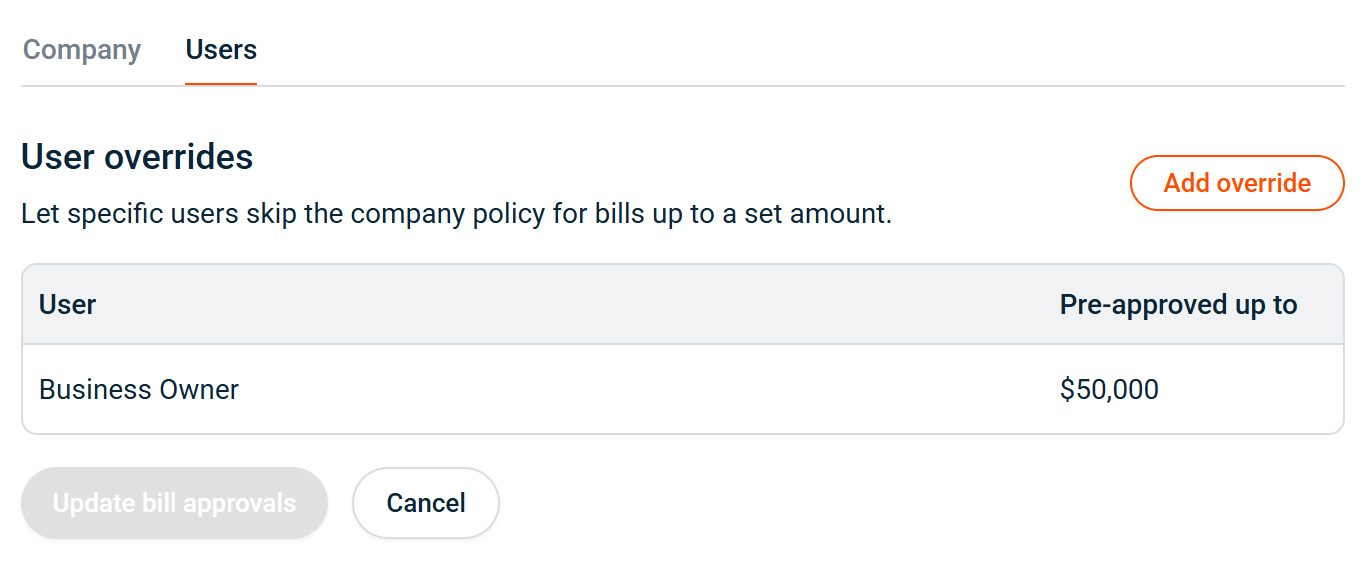
How to add a pre-approved amount
- Open the Users tab.
- Select Add override, then pick a user from the User list.
- Enter the Pre-approved up to amount (up to $50,000).
- Select Update bill approvals to save.
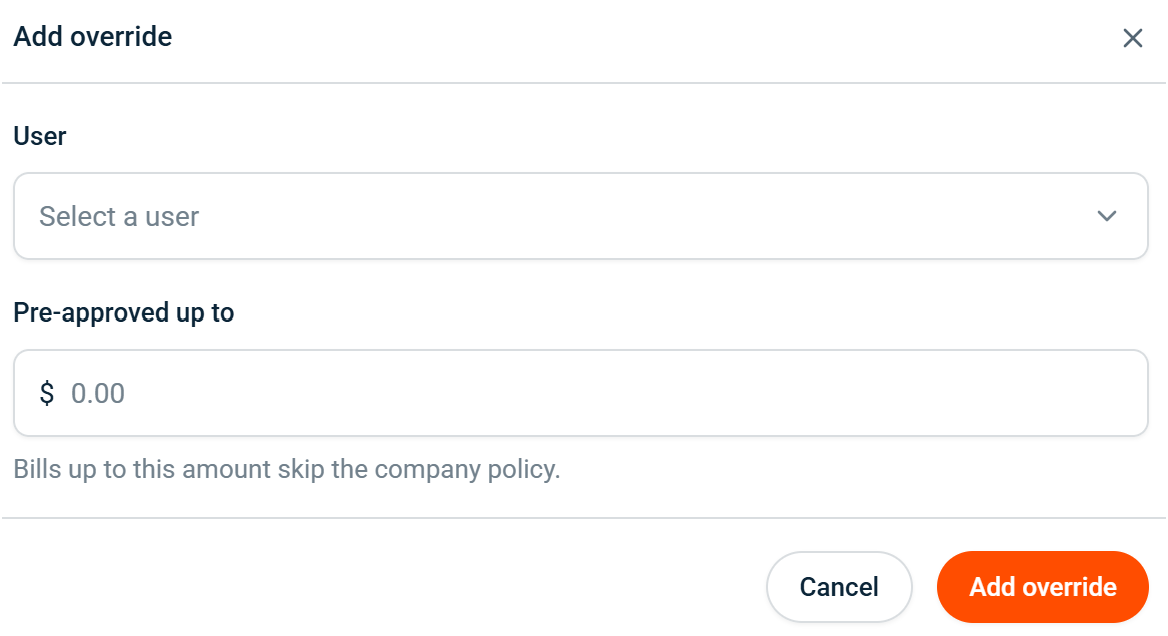
Important: A bill the user raises at or below their pre-approved amount pays without any approval. A bill above it follows the company policy as normal.
How it works
- The pre-approved amount applies only to bills that user submits.
- It’s all-or-nothing: a bill at or under the amount skips approval entirely; a bill over it goes through the policy.
- It’s separate from being an approver — a user can have a pre-approved amount, be an approver, both, or neither.
Edit or remove a pre-approved amount
- Open the Users tab.
- Choose the user to change their amount, or remove them from the list.
- Select Update bill approvals to save.
Important: Every admin is notified whenever a pre-approved amount is added, changed, or removed, because it lets someone pay bills without approval. This keeps the change visible to your team.
Common questions
Is this available on my plan?
Pre-approved amounts are a Premium and Enterprise feature. On Essentials, the Users tab shows an option to upgrade.
What's the most I can pre-approve?
Up to $50,000, which is the single-bill payment limit.
What happens to pre-approved amounts if we downgrade?
They stop applying straight away, so bills follow the company policy again. Your settings are kept, and they apply again if you return to a plan that includes the feature.
Can an admin give themselves a pre-approved amount?
Yes. Every admin is notified when it happens, so the change stays visible to the rest of your team.