
Your bill approval policy sets which bills need approval before they’re paid, how many approvals each needs, and who can give them.
Note: The policy is built from rules. Each rule covers a range of bill amounts and sets how many approvals a bill in that range needs, plus the people who can approve it.
Where to find it
- Open Settings in the sidebar.
- Select Bill approvals.
- Use the Company tab to manage the approval policy.
Note: Admins can edit the policy. Accountants can view it. Other users don’t see this page.
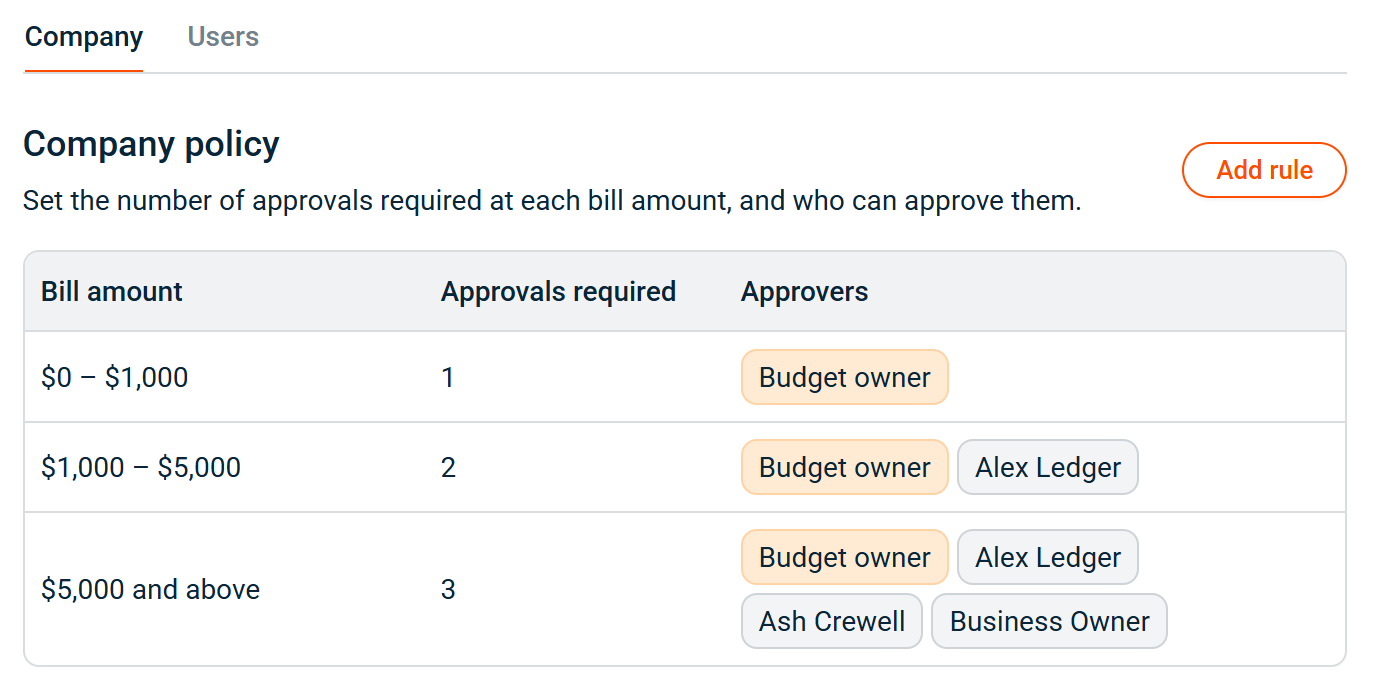
How the policy works
- Every bill amount falls into exactly one rule, based on its total payable amount (including GST).
- Each rule sets an Approvals required count, from 0 to 5.
- A rule set to 0 required pays without approval — this is your auto-approve floor.
- A rule set to 1 or more sends the bill to Pending approval until enough of that rule’s approvers have approved it.
- The lowest rule always starts at $0 and can’t be removed. You add, edit, and remove rules above it.
Tip: To make every bill need approval, set the $0 rule to 1 or more required approvals. To let small bills pay themselves, leave the $0 rule at 0 required and add a higher rule that needs approval.
How to add or edit a rule
- Open the Company tab on the Bill approvals page.
- Select Add rule, or choose an existing rule to edit.
- Enter the Bill amount from — approvers can approve bills from this amount up to the next rule.
- Pick the Approvals required count (0–5).
- Add people using the Approvers picker — search by name or email. Only admins, operators, accountants, and budget owners appear here.
- Select Add rule to save.
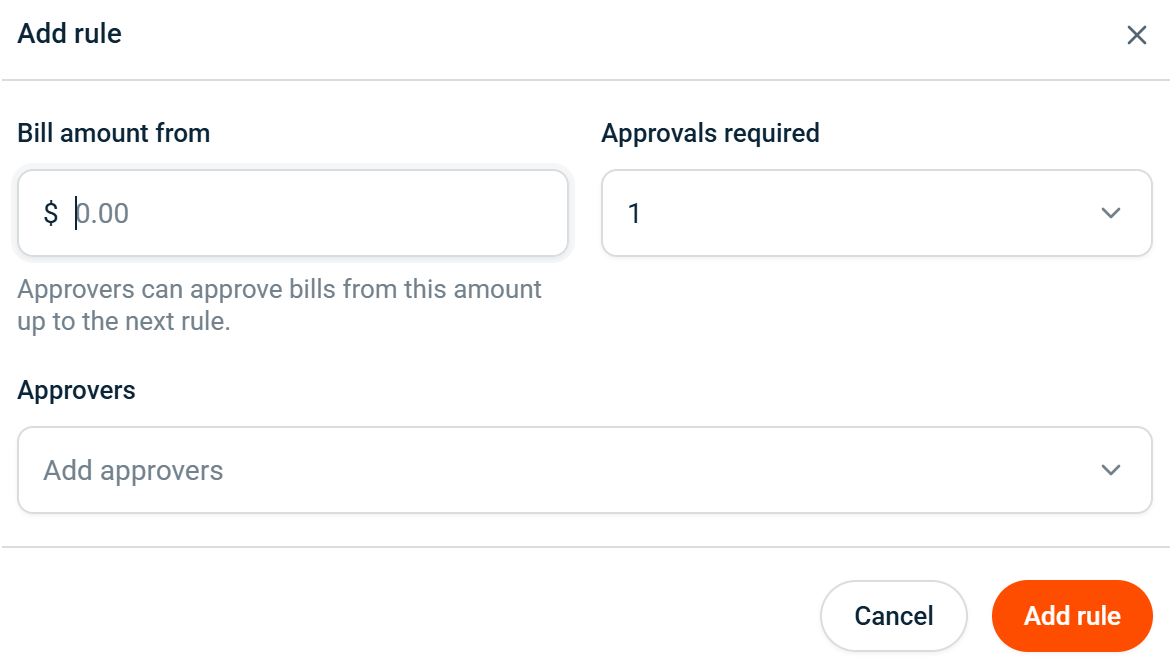
Important: A rule can’t be saved if it has fewer approvers than its required number of approvals. Add more approvers, or lower the required count, until there are enough.
Route a bill to whoever owns its budget
Each rule’s approver picker includes a Budget owner entry alongside named people.
- Add the Budget owner entry to a rule to send each bill to the owner of the budget it’s drawn on.
- Use it when different budgets should be approved by different people, without naming everyone.
- It counts as one approver, and any one owner of that budget approving counts as one approval.
Who can approve
Approvers are whoever you add to your rules, but only these roles can be added:
| Role | Can be an approver |
|---|---|
| Admin | Yes |
| Operator | Yes |
| Accountant | Yes |
| User | Only if they own a budget |
- Users who don’t own a budget can’t be approvers, and won’t appear in the Approvers picker.
- A user can approve a bill only if they’re an approver on the rule for that bill’s amount, or they own the budget it’s drawn on.
- The Admin role on its own doesn’t let someone approve bills. They still need to be added to a rule.
Amount limits
- The single-bill payment limit is $50,000. This is a payment limit, not a rule — a rule must start below $50,000.
- Rules are contiguous: each runs up to the next rule’s starting amount, and the highest rule covers everything above it.