
Admins can view AI Bookkeeping usage, check the current billing tier, and opt out from the Plan & billing page.
Important: Only admins can manage AI Bookkeeping. Users and accountants don’t have access to billing settings.
How to access AI Bookkeeping billing
- Click Settings in the sidebar.
- Select Plan & billing.
- Open the AI Bookkeeping tab.
Viewing your usage
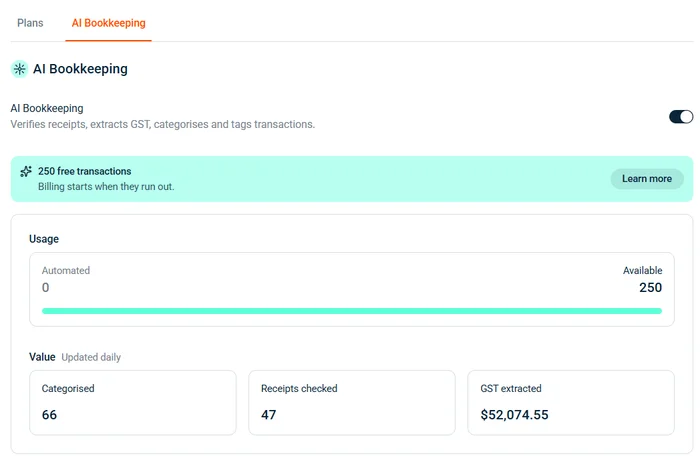
The AI Bookkeeping tab shows:
- Status toggle — switch AI Bookkeeping on or off for your company
- Usage — Automated count (transactions processed) and Available count (remaining before billing starts)
- Value — cumulative totals of transactions categorised, receipts checked, and GST extracted (updated daily)
How to opt out
- Open the AI Bookkeeping tab on the Plan & billing page.
- Toggle AI Bookkeeping off using the switch next to the description.
Tip: Opting out stops the agent from processing new transactions, but existing AI-set values on past transactions remain unchanged. Any remaining included transactions are preserved — if you re-enable later, the counter resumes from where it was.
What happens when you opt out
| What changes | What stays the same |
|---|---|
| Agent stops processing new transactions | AI-set values on historical transactions remain |
| Receipt check column hidden | GST amounts already extracted stay |
| Usage-based billing stops | Remaining included transactions are preserved |
| Feedback already submitted is retained |
What happens when included transactions run out
Once your 250 included transactions are used, usage-based billing starts automatically at the beginning of your next billing cycle. No action needed — there’s no interruption to the service. Your tier is set by your cycle’s volume.
For full pricing details, see budgetly.com.au/pricing.